Split: End Your Pain
I started feeling pain in my right wrist and arm after long sessions at the desk. I ignored it for a while, but it kept getting worse. So, I decided to question my ergonomics at the desk, and I started noticing obvious things, that I never really cared about.
The classic keyboard issues
I’m tall, my shoulders are wide, and a normal keyboard forced me to squeeze my arms inward and bend my wrists outward just to reach the keys. That posture is not sustainable a lot of hours a day.
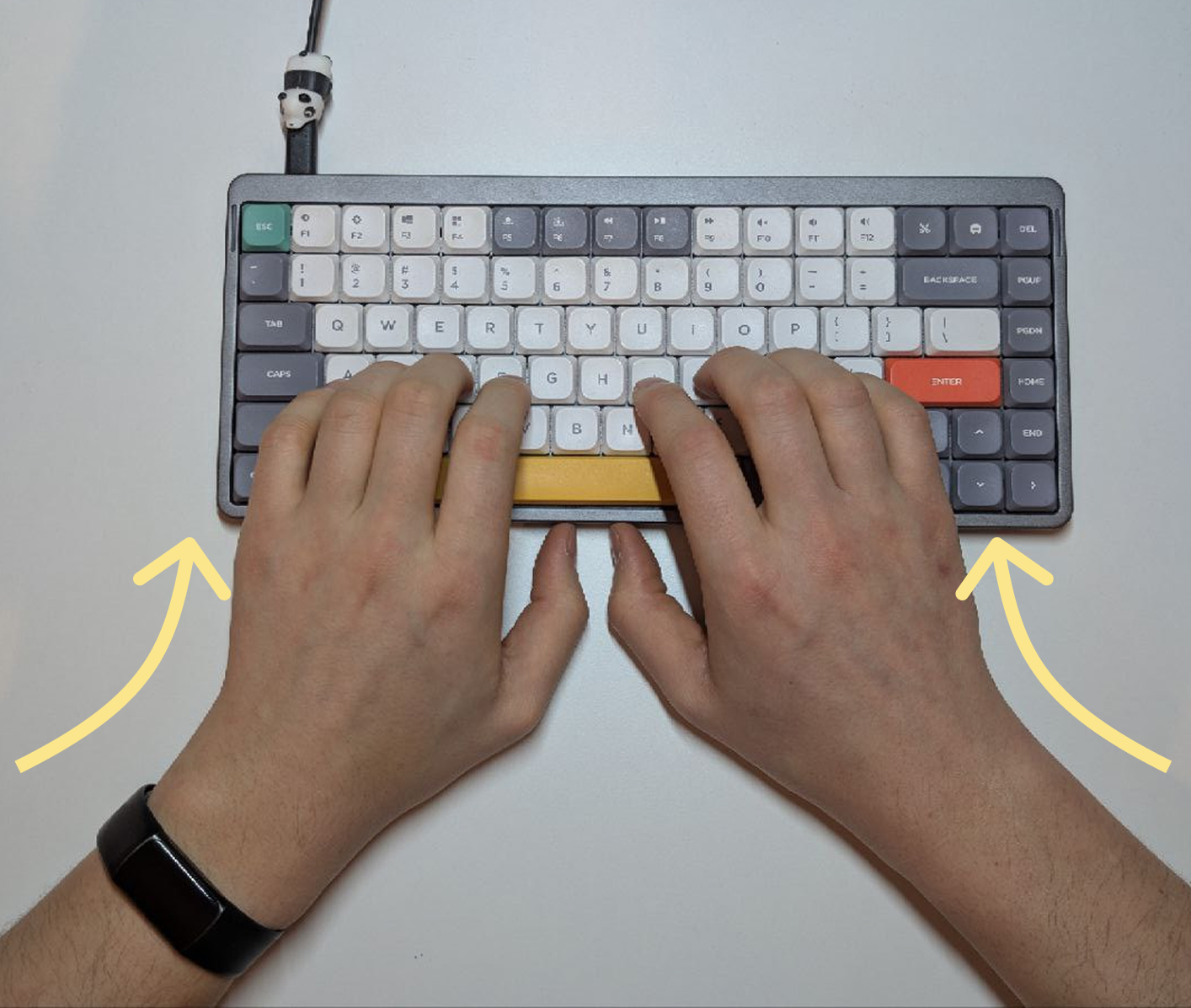
Arms squeezed inward, wrists bent outward
On top of that, most keyboards still carry leftovers from the typewriter era. The staggered key layout exists because mechanical levers needed physical space, not because it matches how your fingers move. And QWERTY was designed in the 1870s to prevent typebar jamming, not for typing speed or comfort. Both are solutions to problems that no longer exist.
And finally, the thumb. On a traditional keyboard you have ten fingers but your strongest digit, the thumb, is wasted on a single massive spacebar. That is a lot of unused potential. It is possible to do better.
Why a split keyboard
A split keyboard fixes the posture problem. I was able to place each half at shoulder width, allowing me to have the wrists stay straight, and the chest opens up instead of caving in. I can also put the mouse between the two halves, so my right-hand does not have to travel sideways to reach it, which also reduces right shoulder movement. Since switching I have had no pain. It is one of those changes that looks trivial, but then you wonder why you did not do it sooner.
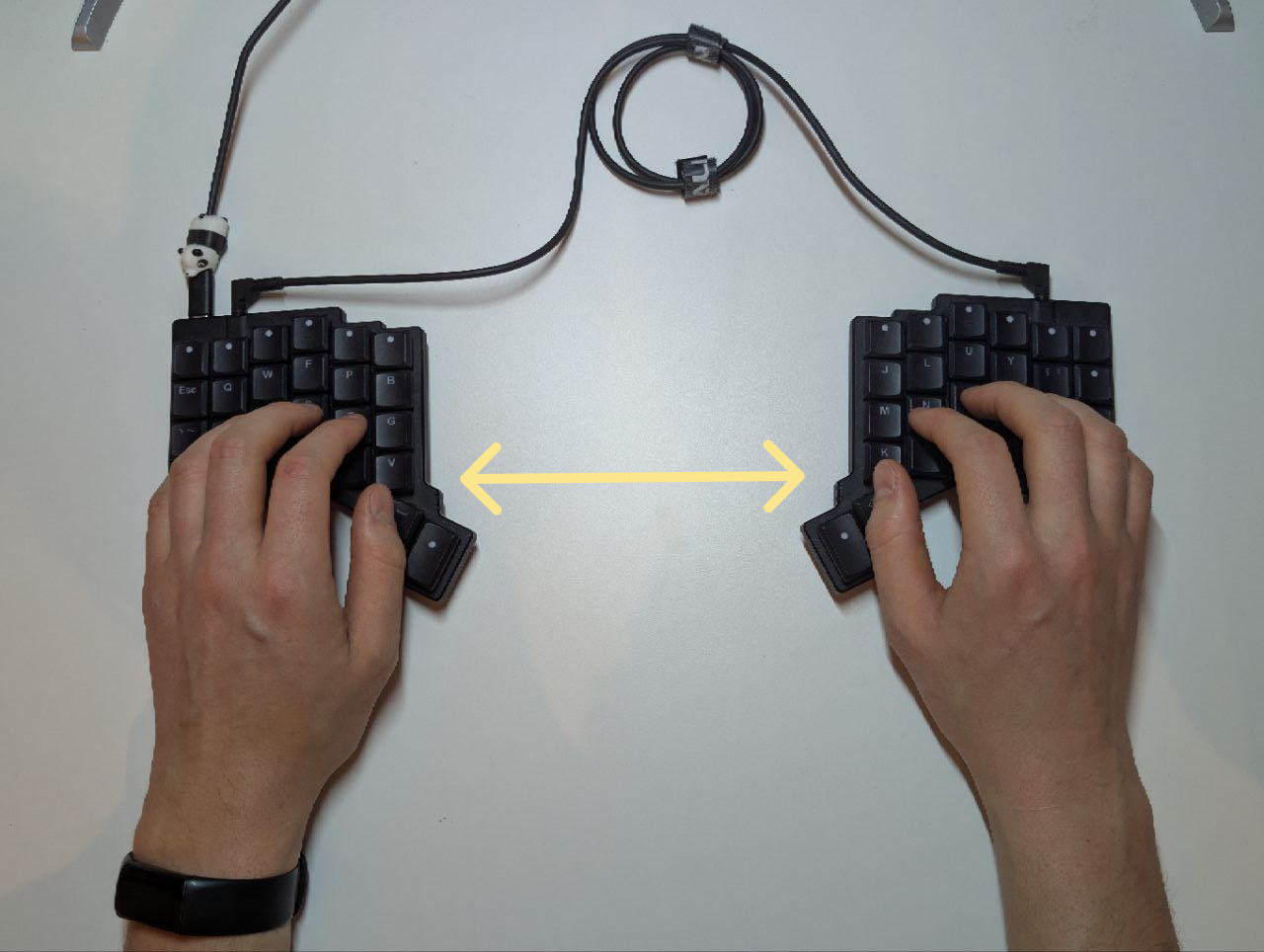
Arms straight, wrists aligned
But to be clear, the unique advantage of a split keyboard is the wrist and arm alignment. Everything I describe next is possible on any keyboard running custom firmware like QMK or ZMK. That said, split keyboards tend to be smaller and have fewer keys, which makes these features not just nice to have but essential.
Layers
Layers let you access different sets of keys by holding a key, instead of having a massive board with a dedicated key for everything. Sounds complex? You already use one every day: Shift. Layers are the same concept, extended to everything. I have a layer for numbers, one for symbols, and one with vim-style arrow keys. My fingers stay on or near the home row for almost everything I do.
Home-row mods
Ever noticed the small bump on the F and J keys? That is where your index fingers are supposed to rest. That row is called the home row, and it is the middle row of the keyboard where all your fingers sit by default. Home-row mods turn those keys into dual-purpose keys: tap for the letter, hold for a modifier (Ctrl, Shift, Alt, Meta). This means I almost never have to stretch my fingers to awkward corners of the keyboard. It takes some getting used to (and some tuning of the hold threshold), but once it is dialed in it feels natural.
Combos
Combos let you press two keys at the same time to produce a different output. For example, I press J and K together to trigger Escape. It sounds odd at first, but it becomes muscle memory fast. Combos are great for actions you use constantly but do not deserve a dedicated key on a small board.
Tap dance
Tap dance gives a single key multiple behaviors based on how many times you tap it. A single tap does one thing, a double tap does another. It is another way to pack more functionality into fewer keys without adding complexity to your muscle memory, because the actions are still tied to the same finger and position.
Why not QWERTY
I already mentioned that QWERTY is a relic from the 1870s. Once I was already retraining my muscle memory for a split columnar layout, switching away from QWERTY felt like the natural next step. I moved to Colemak DH, which places the most common keys on the home row where your fingers already rest. The first few weeks were painful, but it was worth the effort and I am not looking back. If you want to practice, keybr is a great tool to train any layout at your own pace.
My setup
There are plenty of split keyboard models, but I decided to trust ZSA for three main reasons: the product quality, hot-swappable switches and the Oryx configuration tool.
I started with ZSA Moonlander to switch later on to ZSA Voyager, the Moonlander has too many keys and it is too big for my taste. It took some time to get used to, but once it clicked I could not go back. I hate taking my hands off the keys, so the less I have to reach for something, the better.
You can find my full layout below, or check it out directly on Oryx.
Conclusion
If you spend most of your day at a keyboard, it is worth questioning the defaults. A split layout, ortholinear keys, layers, and a modern key map are not gimmicks. They are small changes that remove friction you did not even know was there. The learning curve is real, but it is a one-time cost for a permanent upgrade to how you work.